The first time you connect to the app, you’ll land on the empty Activity screen where all call-related interactions in the app happen. The Activity screen will then show the incoming or active call activity that was on the Cloud9 desktop app before connecting to Cloud9 Mobile.
Answer an incoming call
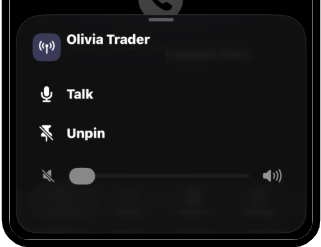
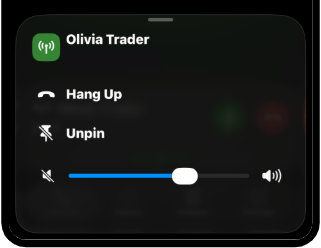
The Activity screen shows your call activity on floating call buttons. Your call activity is silenced by default, but you can listen and talk on chosen calls.
- Tap the Call icon either to initiate a call or talk
, or to answer an incoming call
.
You’ll receive notifications and get visual updates in the app for incoming calls when someone is attempting to reach you.
- Tap an active or inactive button to access the button’s actions menu and talk.
Start a call
- Tap the Call button to open the New Call screen.
- Select a call button to place the call or search for a name
.